Modern Android tries to guess what you might need next. It drops icons for newly installed apps on the home screen, shows suggestions, scans for nearby devices, and floods you with notifications. Meanwhile the phone starts to feel slower. To take control back and make the device more pleasant to use, you only need to change five standard settings.
How to clean up the home screen
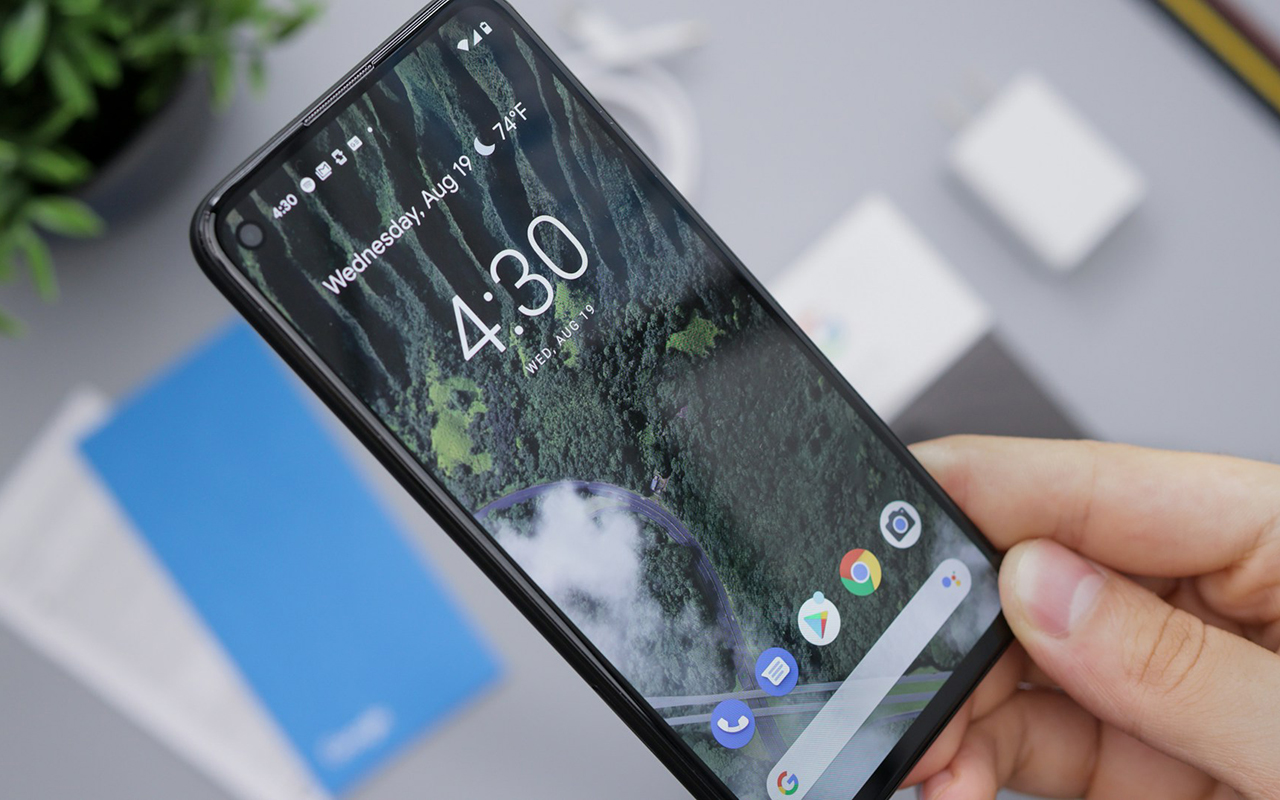
By default, every new app from Google Play immediately creates an icon on the home screen. If you often try services or download one-off tools, the desktop turns into a chaotic pile within a couple of weeks.
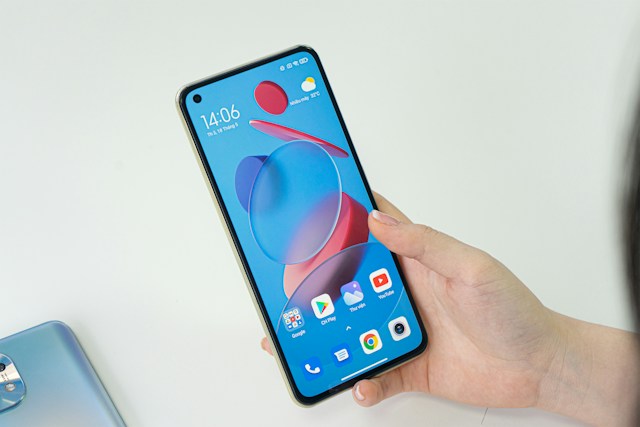
To stop icons from appearing automatically, long-press an empty spot on the home screen, open Settings, and turn off "Add icon to Home screen" (wording varies by launcher). New apps will then land only in the app drawer.
Reduce system animations
Android is packed with smooth visual effects: windows slide in, apps minimize with soft blur. It looks nice, but it also creates a sense of micro-lags while you work.
To make the interface feel instant, enable Developer options. Go to Settings → About phone and tap Build number seven times. Then open Developer options, find the Drawing section, and change Window animation scale, Transition animation scale, and Animator duration scale from 1x to 0.5x, or turn them off. The phone will feel noticeably snappier.
Turn off background Wi-Fi and Bluetooth scanning
Even if you manually disable Wi-Fi and Bluetooth, the system often keeps quietly scanning for smart devices, location cues, and networks. That drains the battery and keeps the processor from entering deep sleep.
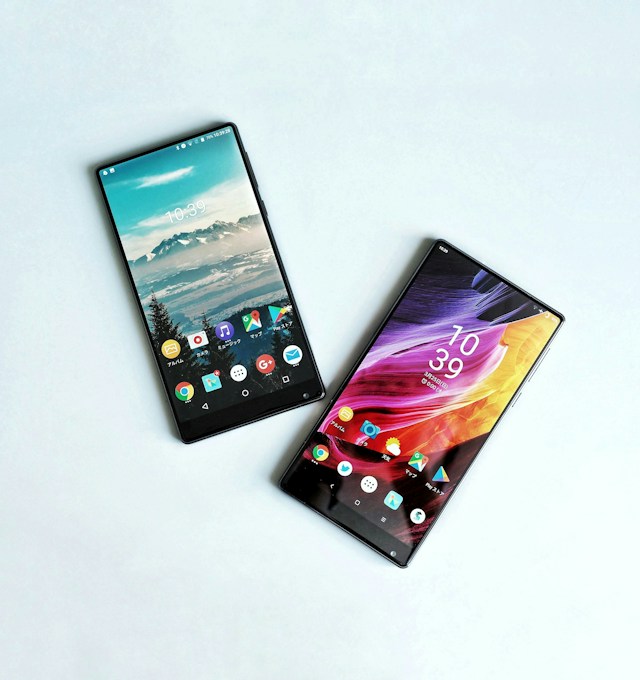
If you connect to the same headphones and home Wi-Fi every day, constant scanning is optional. Search Settings for "Scanning" and turn off Wi-Fi scanning and Bluetooth scanning.
Tidy up notifications
By default Android treats a bank alert and a food-delivery promo as equally important. You should not mute every notification, but you should sort them by priority.
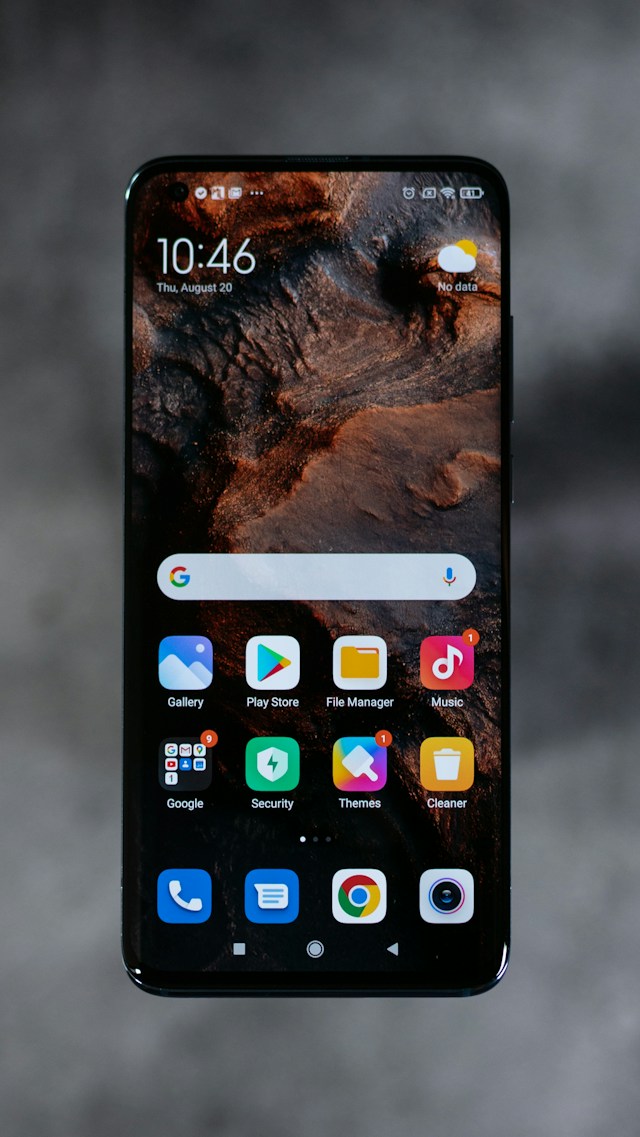
Open the apps that keep sending promo codes and deals, and block their push notifications. Another key detail is lock-screen privacy. Under Notifications on the lock screen, choose "Hide sensitive content" (or similar). You will see who messaged you, but the text stays hidden until you unlock the phone.
Turning off smart app suggestions
Android tries to learn your habits and keeps surfacing icons for apps you often open at a certain time or place. For many people, the feature feels pushy.
You can remove built-in suggestions in home-screen settings or the recent-apps menu. On Samsung phones, open Recents, tap the three dots, go to Settings, and turn off Suggested apps. On Pixel devices, disable them in home-screen settings under Suggestions.